

This page visually describes the steps needed to set up MCECS MFA on the Google Authenticator app. You will be alternating between our CRAM account management portal and the Google Authenticator app on your phone.
The Google Authenticator app is a very popular third-party MFA app. The Google Authenticator app can be also used for setting up Time-based One-Time Passcodes (TOTP). If you don’t already have the Google Authenticator app, get it from your phone vendor’s preferred app store.
1 – CRAM site – Prepare to add an MFA authenticator
On your computer, login to cram.cecs.pdx.edu , click the “Enroll in MFA” button.

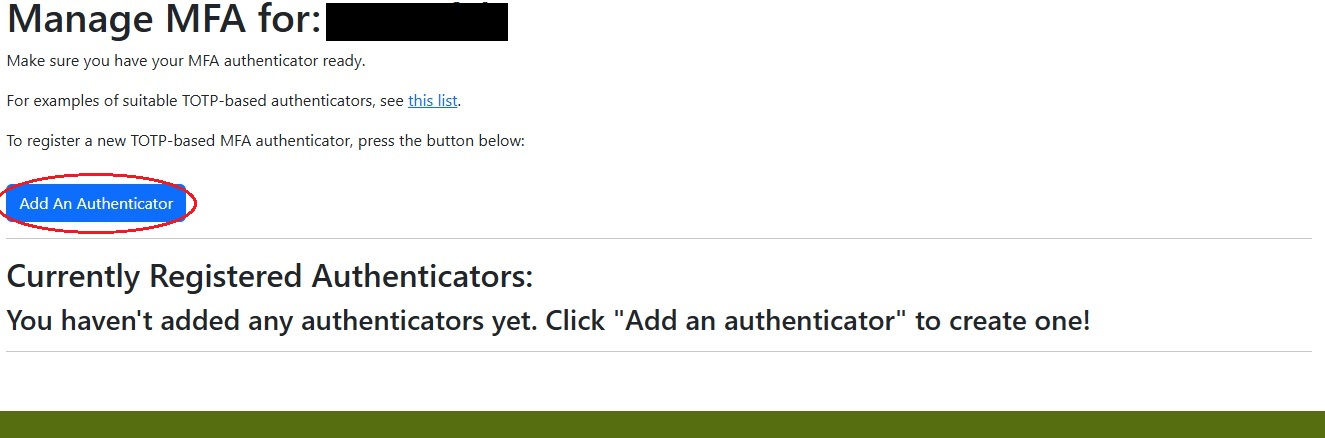
Click on the “Add An Authenticator” button
2 – CRAM site – Get QR code to prime your authenticator
You will be presented with a QR code to set up your authenticator. This works best with a TOTP authenticator on a mobile device.
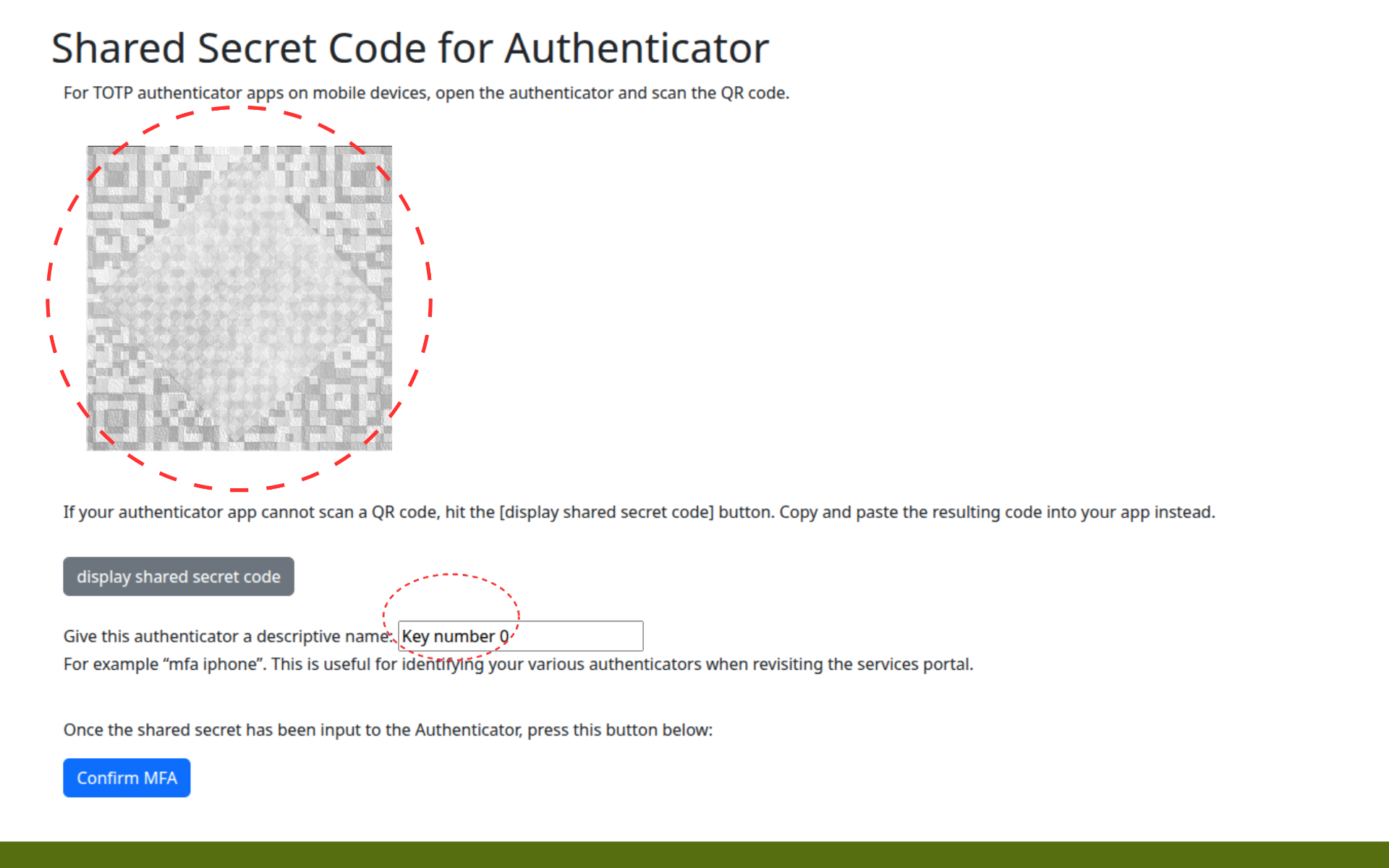
If you are using a desktop authenticator app, click on the “display shared secret code” button. It will reveal a numeric code that you can copy and paste into a desktop authenticator.
Give this particular authenticator a descriptive name (for example “mfa iphone”). This is useful for identifying your various authenticators when revisiting the services portal.
Before proceeding further on this page, switch to the Google Authenticator app on your mobile device for the next few steps.
3 – Google Authenticator app – Use the QR code method to add a new authenticator account
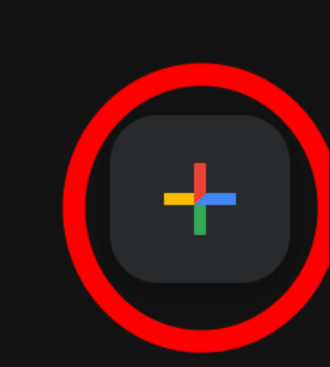
On your phone, run the Google Authenticator app. There is a large plus sign on the bottom right of your screen that, when pressed, will give you the option to add a new authenticator.
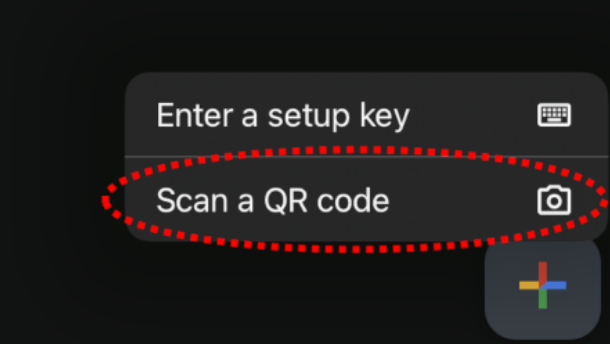
Press the “Scan a QR code” button. Google Authenticator will open the camera on your device. Position your device so that the QR code on the screen fills the camera view.
The Google Authenticator app will automatically associate your MCECS login with a TOTP code upon scanning the QR code.
You should now see this account displayed on your Google Authenticator app. Next, return to where you left off at the CRAM site on your computer.
5 – CRAM site – Authentication confirmation step
Go back to where you left off at the CRAM portal on your computer.
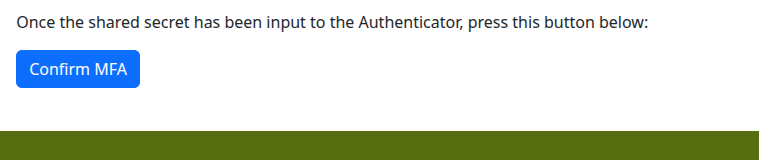
Click on the “Confirm MFA Button”.
You will be asked to enter the TOTP code from your Google Authenticator app.

6 – Google Authenticator – get the TOTP code from the app on your phone
In your Google Authenticator app on your phone, your TOTP code will appear automatically under “PSU-MCECS: username@cecs.pdx.edu”.
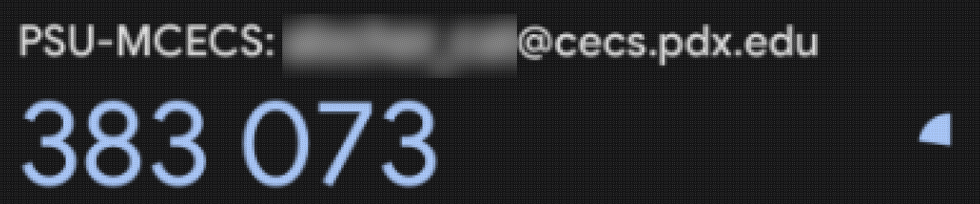
Note that it cycles through a new TOTP code every 30 seconds. If you are close to the cycle point, wait until it refreshes to a new code before using it.
7 – CRAM site – Enter TOTP code from Google Authenticator to finalize authenticator enrollment
On the CRAM page on your computer, enter the TOTP code from your authenticator into the designated box and click on the “Submit TOTP code” button.
If everything went well, you will see the MFA setup success page.
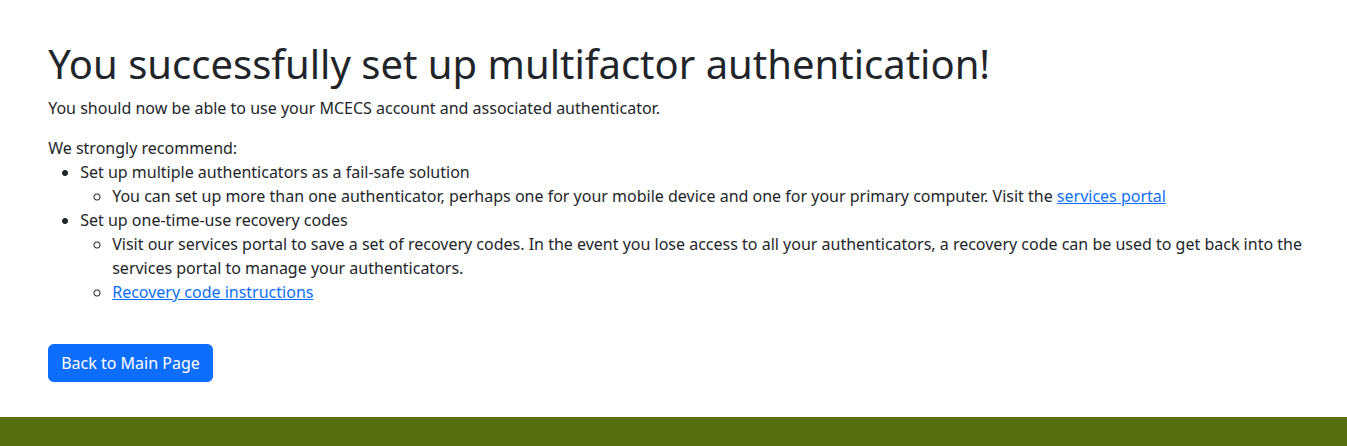
Your MCECS MFA authenticator is now ready for use.