

Multifactor authentication (MFA) adds an extra layer of security by requiring more than just a password to log in. Most commonly, this is done by entering a Time-based One Time Password (TOTP) generated by an authentication app on your phone. This helps protect your account even if your password was guessed, stolen, or leaked, by ensuring that only someone with access to your registered device can log in.
Locked out because of MFA?
So, the spam we sent out in the wee hours of Oct 15, 2026 erroneously gave a link to this page. What it should have given is the url to the page that talks about how how to use CRAM to enroll in MFA if you are locked out. Use the button in this block or go to the following URL to get the info:
https://cat.pdx.edu/users/computer-accounts/using-cram/
This page on MFA is mainly useful if you already have a working MFA authenticator and are looking to enroll other authenticators or get some one-time recovery codes. It also illustrates the steps you go through when you are setting up your authenticator in CRAM.
| Table of Contents |
|---|
Setting Up MFA
Before you begin, you need a working TOTP authenticator. If you need help on TOTP authenticators, see section 5 in this page.
1 – Navigate to the MFA Setup Page
- Log in to the MCECS Self Service Portal
- Click on the MFA/TOTP tab at the top
- Click on MFA Setup in the sidebar
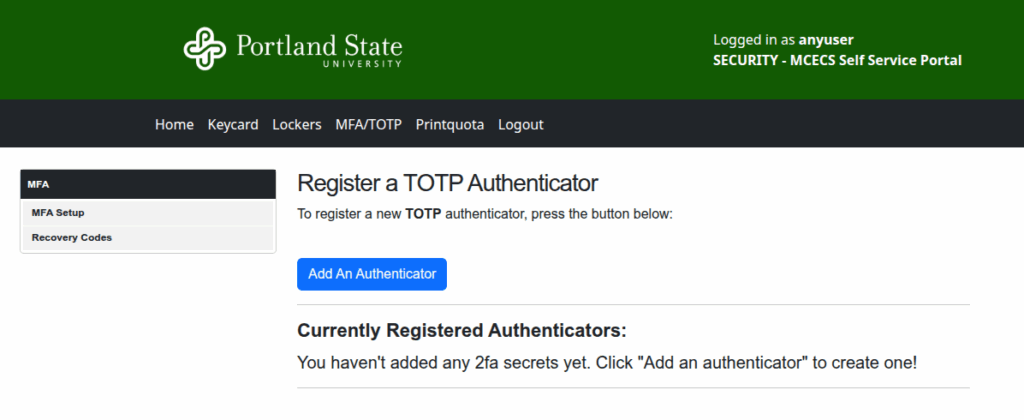
2 – Add an Authenticator
- Click Add An Authenticator
- Scan the QR code with OR manually enter the shared secret code into your preferred authenticator app
- (Optional) Give your authenticator a name so it’s easy to identify later
- Click Confirm MFA
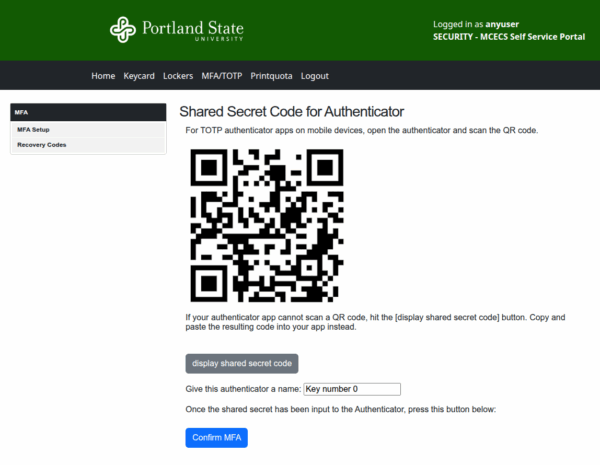
3 – Confirm Your Authenticator is Working
- Enter the TOTP code from your authenticator
- Click Submit TOTP code
Note: Make sure to enter your code with no spaces or this step will fail
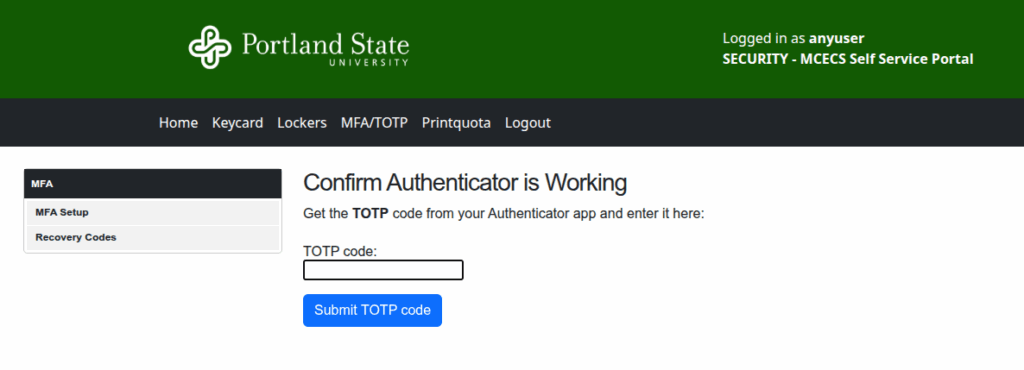
Is you pass this stage, you have successfully enrolled your authenticator to our MFA system.
Logging In with MFA
Tip: If you use SSH keys, you can skip the TOTP prompt when connecting to Linux machines
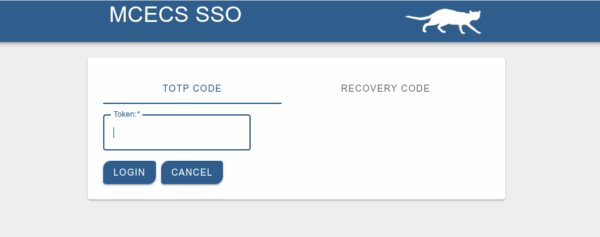
You will be asked to provide a TOTP code upon signing in to certain MCECS services. This applies to:
- Web-based Single Sign On (SSO) logins
- Includes: Intranet, MCECS Service Portal
- SSH connections from off campus
- Applies to servers like ada, babbage, quizors, etc.
- This includes the use of SFTP and SCP
Recovery Codes
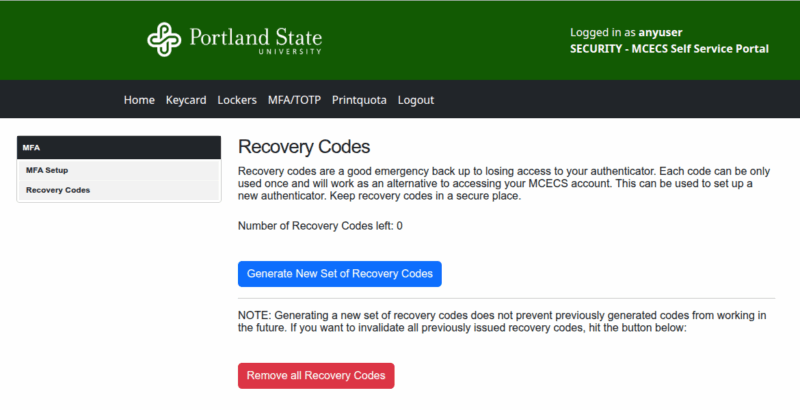
Recovery codes are one-time-use codes that let you log in without your TOTP code, which is useful if you lose access to your phone or authenticator app. Simply enter a recovery code when prompted for TOTP.
To generate a set of recovery codes:
- Log in to the MCECS Self Service Portal
- Navigate to MFA/TOTP > Recovery Codes
- Click Generate New Set of Recovery Codes
- Save the generated codes somewhere safe and secure
Locked Out of Your Account?
If you do not have access to your authenticator and need to log in, you have two options:
- If you generated and saved them, you can log in with a one-time-use recovery code
- Log in to CRAM using your Odin credentials and reset your MFA enrollment. This removes MFA from your account, allowing you to re-enroll with a different authenticator
Authentication Apps
There are many apps that can be used for TOTP authentication. If you already have a TOTP authenticator, you can add MCECS MFA to it. If you don’t know where to start, here’s a short list of popular options:
- DUO (mobile)
- Google Authenticator (mobile/desktop)
- Microsoft Authenticator (mobile)
- Step Two (iPhone/Mac)
- Bitwarden (mobile/desktop – also a password manager)
- KeypassXC (desktop – also a password manager)
- authenticator.cc (browser based TOTP authenticator)
Note: The Duo app is used for MFA with Odin accounts. If you already use the Duo app, you will also be able use it as a TOTP authenticator. See our page on how to do it.
MCECS MFA/TOTP Debugging
- Some authenticators present the TOTP code with a space in the middle (to make it easier to read). Make sure you do not include the space when you type in the code.
- For example:
- Rejected Code: 123 456
- Accepted Code: 123456
- For example:
- Make sure the time on the device with the authenticator is set to the current time. If you have a habit of changing the time as a scheduling aid, your authenticator will generate erroneous code that will not work.
- Make sure you have completed the authenticator enrollment completely and have reached a page that tells you that the authenticator has been successfully set up.