

This page visually describes the steps needed to set up MCECS MFA on the DUO app. You will be alternating between our CRAM account management portal and the DUO app on your phone.
The DUO app is popular at PSU. OIT requires it for Odin account authentication for access to critical systems. In addition to receiving push notifications from Odin accounts, the DUO app can be also used for setting up Time-based One-Time Passcodes (TOTP). If you don’t already have the DUO app, get it from your phone vendor’s preferred app store.
1 – CRAM site – Prepare to add an MFA authenticator
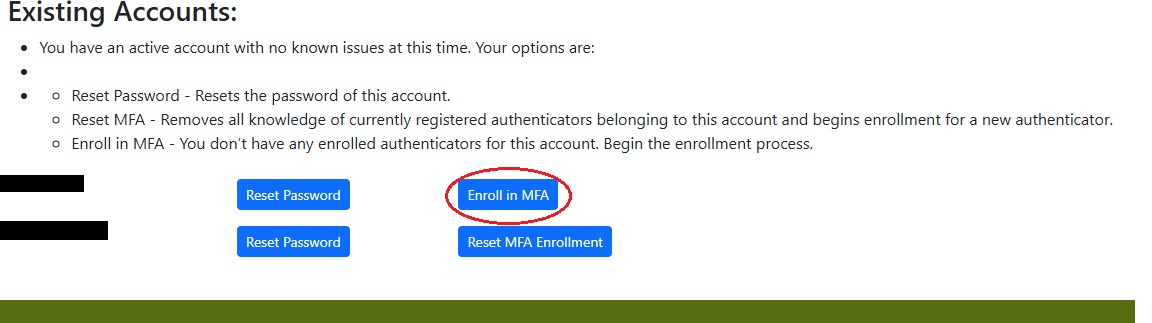
On your computer, login to cram.cecs.pdx.edu , click the “Enroll in MFA” button.
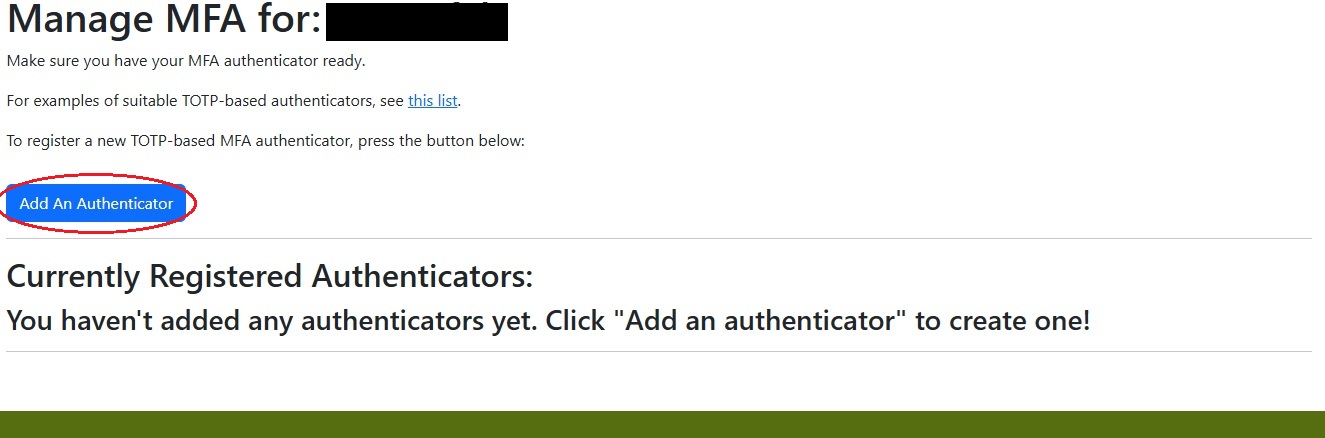
Click on the “Add An Authenticator” button
2 – CRAM site – Get QR code to prime your authenticator
You will be presented with a QR code to set up your authenticator. This works best with a TOTP authenticator on a mobile device.
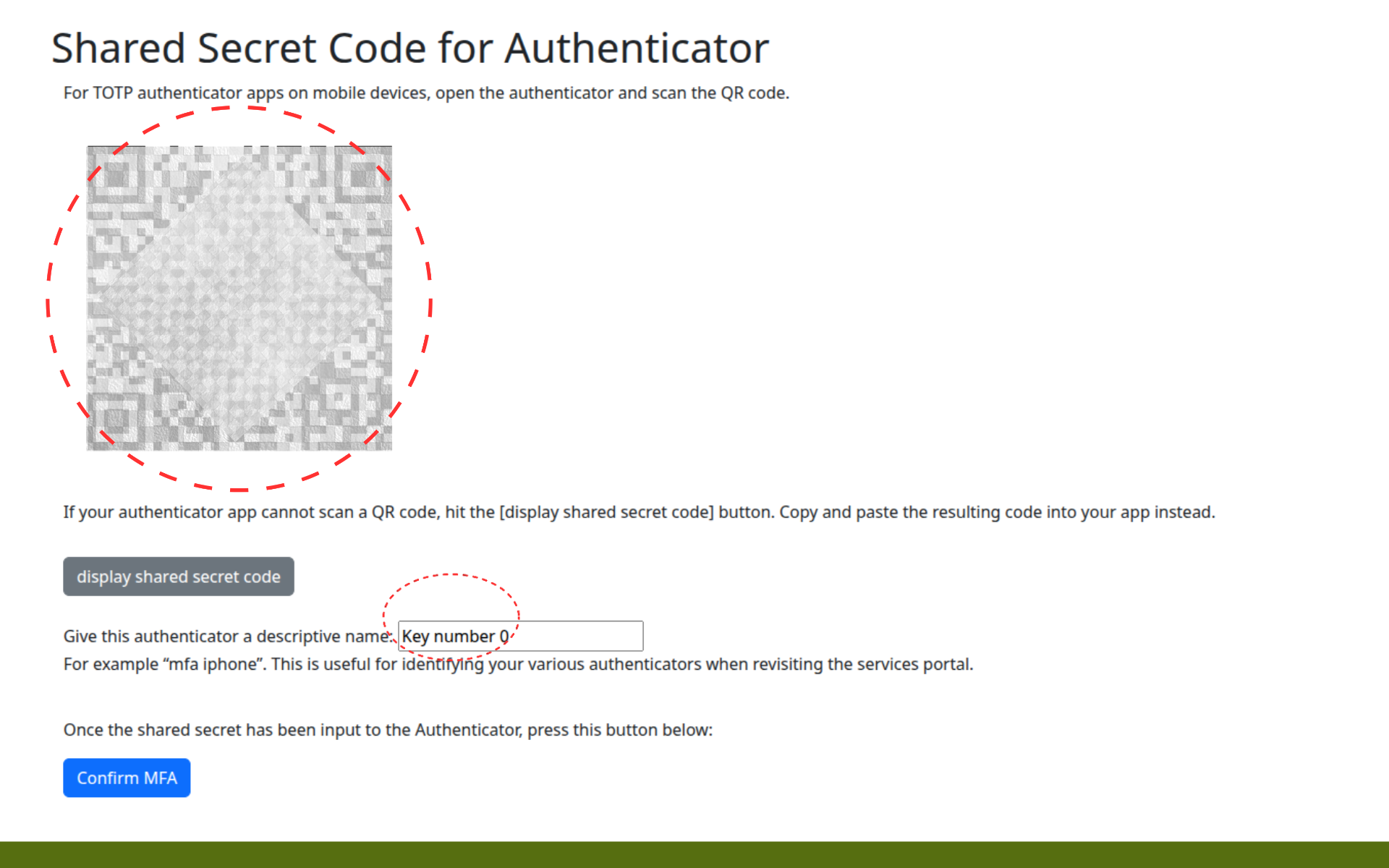
If you are using a desktop authenticator app, click on the “display shared secret code” button. It will reveal a numeric code that you can copy and paste into a desktop authenticator.
Give this particular authenticator a descriptive name (for example “mfa iphone”). This is useful for identifying your various authenticators when revisiting the services portal.
Before proceeding further on this page, switch to the DUO app on your mobile device for the next few steps.
3 – DUO app – Use the QR code method to add a new authenticator account
On your phone, run the DUO app.
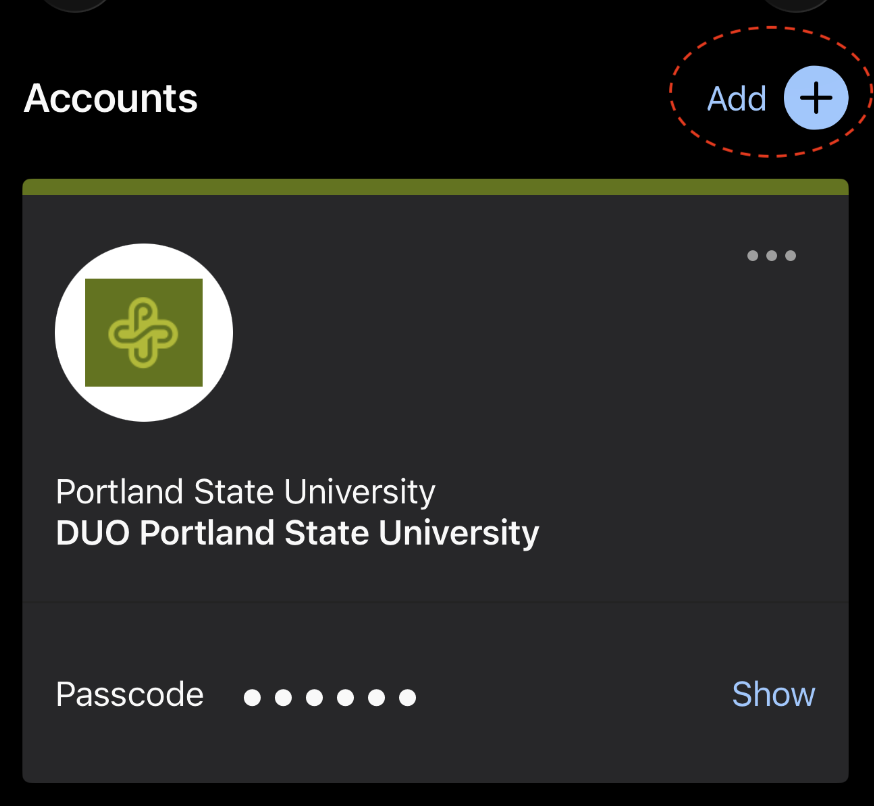
Press the “Add +’ button. You should now be on the “Add Account” mode on the DUO app on your phone.
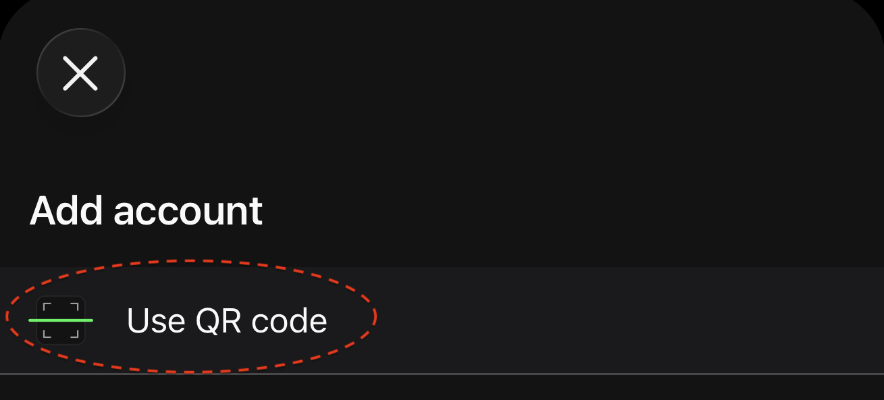
Press the “Use QR code” button. The DUO app will open the camera on your phone. Position the phone so that the QR code on the computer display fills the camera view.
4 – DUO app – Save the new DUO authenticator account
The DUO app will acquire the QR code quickly and display a new DUO account item.
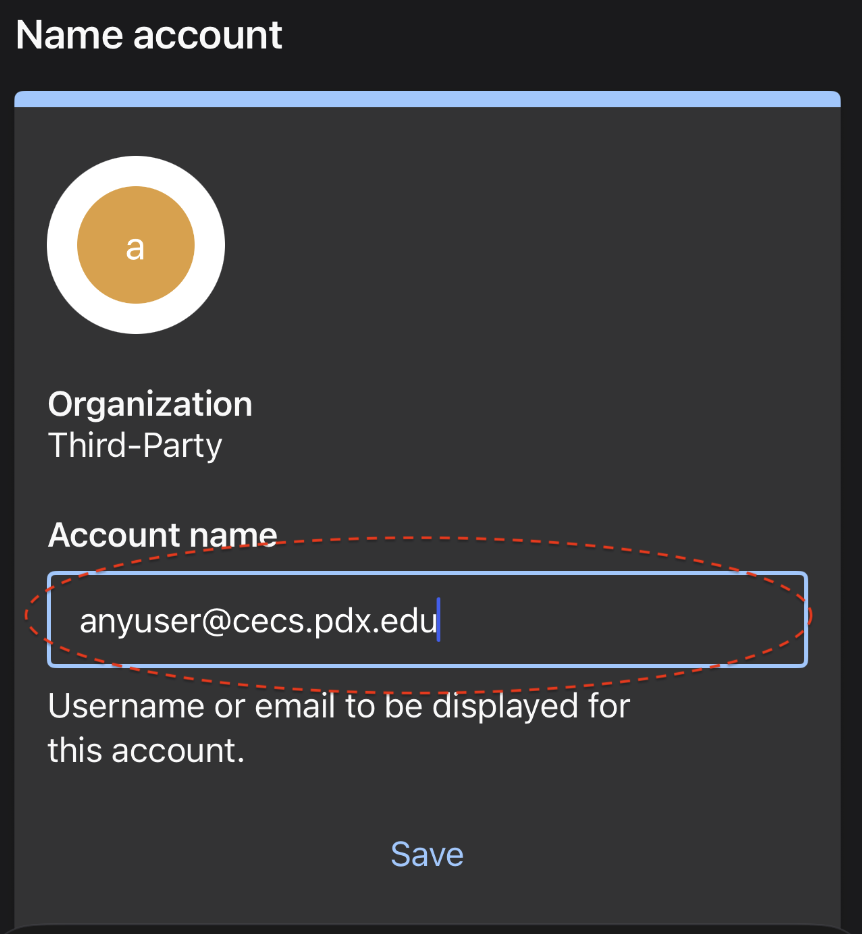
You can leave the account name as is or change it to something more descriptive. (For example, “MCECS MFA”.)
Then press the “save” button on the DUO app. You have now saved this new TOTP account on your DUO app.
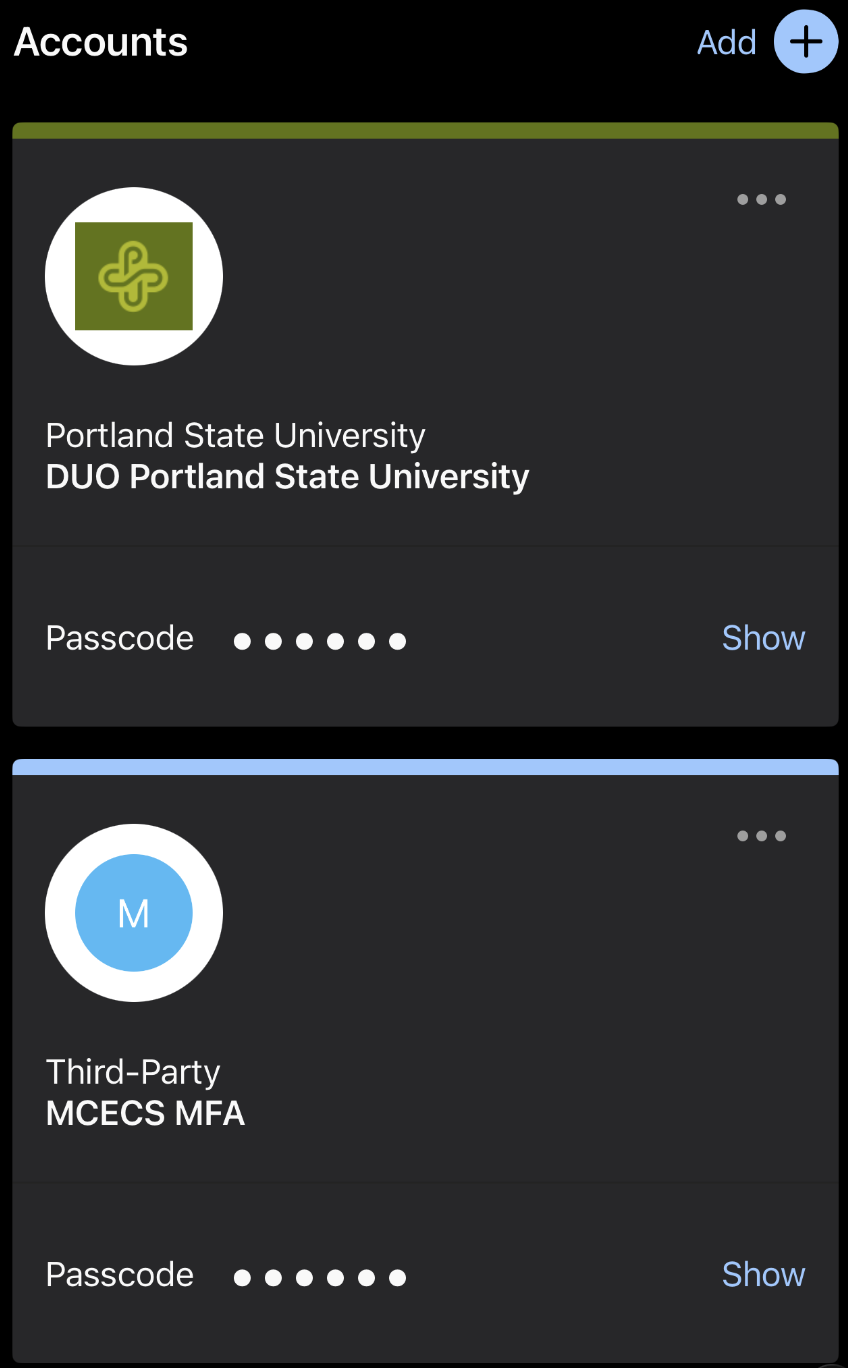
You should now see this account displayed on your DUO app. Next, return to where you left off at the CRAM site on your computer.
5 – CRAM site – Authentication confirmation step
Go back to where you left off at the CRAM portal on your computer.
Click on the “Confirm MFA Button”.
You will be asked to enter the TOTP code from your DUO app.

6 – DUO – get the TOTP code from the app on your phone
In your DUO app on your phone, press the TOTP account you just set up to reveal the TOTP code.
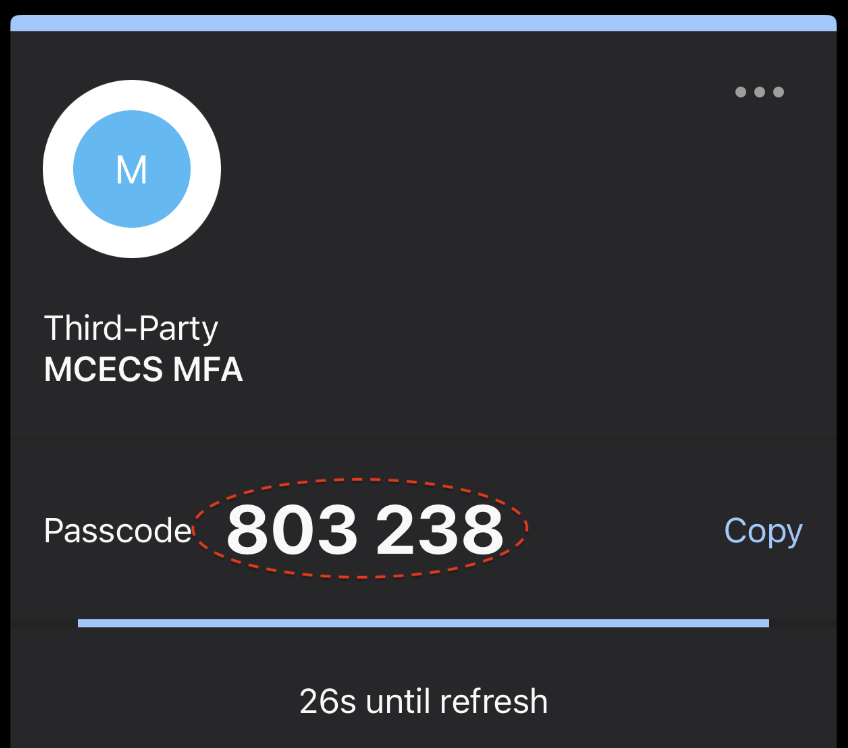
Note that it cycles through a new TOTP code every 30 seconds. If you are close to the cycle point, wait until it refreshes to a new code before using it.
7 – CRAM site – Enter TOTP code from DUO to finalize authenticator enrollment
On the CRAM page on your computer, enter the TOTP code from your authenticator into the designated box and click on the “Submit TOTP code” button.
If everything went well, you will see the MFA setup success page.
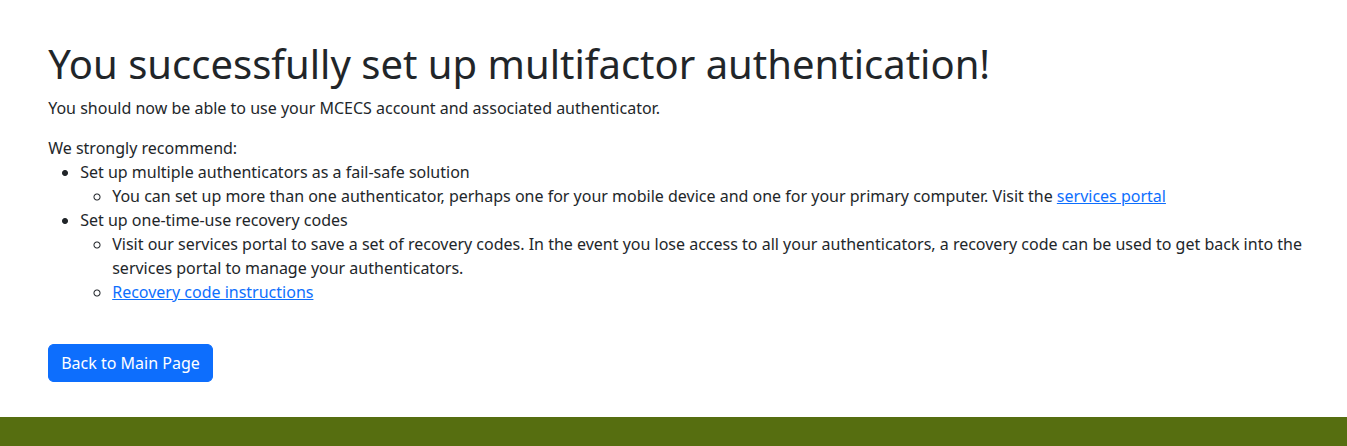
Your MCECS MFA authenticator is now ready for use.